Red: competing phases
Concurrent phase commitments exceed a shared person’s available project capacity. See when the demands overlap, then review the conflicting assignments.
 PlanspaceSign in
 TEAM & RESOURCE PLANNING
See what matters, who is available, and when work can happen. Bring your initiatives, people, and capacity into one clear plan.
Competing phases need the same people.
SEE THE DETAILS THAT MAKE A DIFFERENCE
Go from the portfolio to a phase, a team, or a person. The same planning window reveals both the work and the resource conflicts behind it.
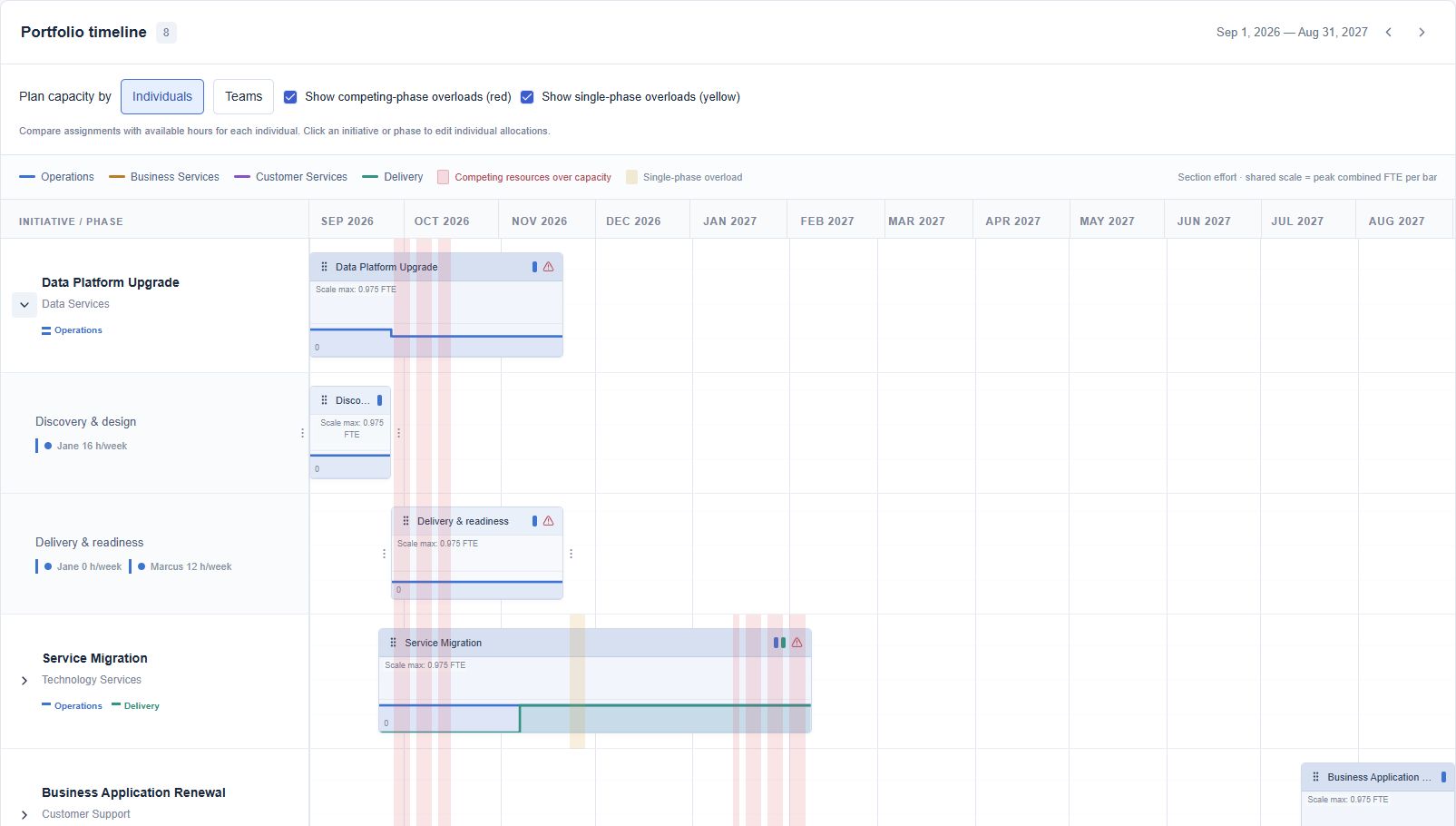
Concurrent phase commitments exceed a shared person’s available project capacity. See when the demands overlap, then review the conflicting assignments.
A single phase exceeds capacity by itself. Rescheduling other work may not resolve it: review the allocation, available hours, or the phase window.
Open resource conflicts and inspect a person’s mini schedule. Numbered warning markers connect affected phases to the conflict list.
In a week containing both overload types, red takes precedence. Capacity checks include daily overloads that a weekly average can hide.
Account for operations, administration, and date-adjusted leave before allocating project hours. See available project time while choosing phase members.
Drag initiative and phase windows on the roadmap. Explore an alternative in a planning scenario before bringing it into the current plan.
Review individual or team capacity, filter by section and priority, and expand initiative bars into the phases and assignments underneath.
BUILT AROUND REAL WORK
Balance the work you want to do with the people and time you actually have.
ROADMAP & INITIATIVES
Lay out initiatives and phases over time. See priorities, delivery windows, and the shape of the work in a single portfolio view.
PEOPLE & CAPACITY
Plan around project capacity after operational work, admin time, and leave. See when one phase asks too much—or when phases compete for the same people.
SCENARIO PLANNING
Compare planning scenarios before adopting changes into the current plan. Give decisions a place to develop before they become commitments.
PUBLISHED INITIATIVES
For published initiatives, see the progress and hours reported from Queuespace alongside the plan. Review phases, team reports, and initiative-level trends.
THE CONNECTED VIEW
A published initiative brings team progress, logged work, and planned effort into the same view. Keep everyday tickets separate while project tickets retain their initiative and phase context.
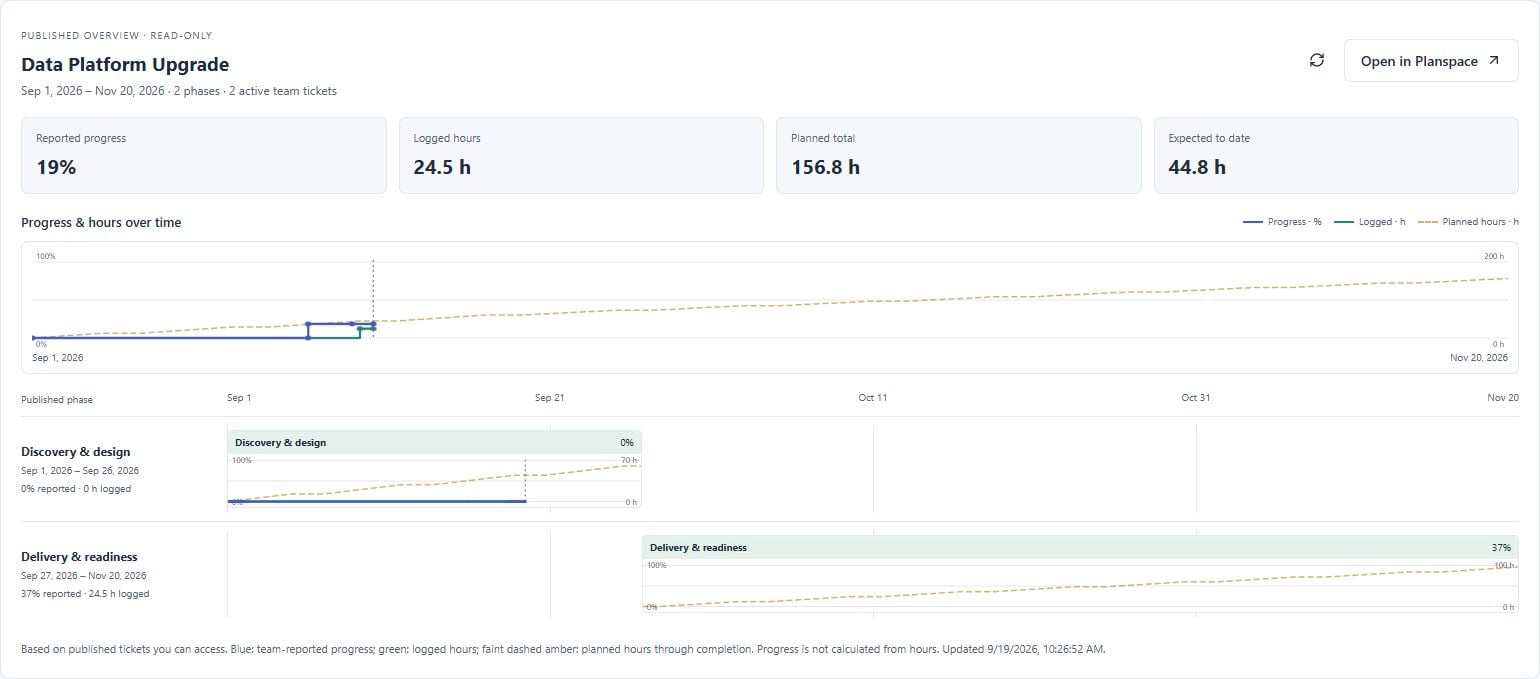
One team ticket per phase. Team members contribute notes and work logs; the designated lead owns the progress slider.
Recorded hours add context to the progress report. They do not calculate or replace the completion percentage.
The faint dashed line extends to the published finish. Compare logged effort with the planned total and expected hours to date.
BETTER TOGETHER
Connect Planspace and Queuespace to carry initiatives into team work—and bring reported progress back to the roadmap.
See how they connectPublish deliberately. Report progress continuously.
A PLAN FOR YOUR TEAM
Choose the plan space allowance that fits your organization.
Get started with a shared home.
No subscription charge
Space for a growing team.
Billed monthly
More room for teams and projects.
Billed monthly
Prices in USD. *Paid membership is subject to fair use and provider limits. **Connecting the apps requires paid access in both, purchased separately or through a bundle. Subscription allowances are shared across the client’s administrators.
Planning + executionBundle both apps and save 10%.A CLEARER WAY TO WORK